
DIY Recipe · Screens & Head Units
Install an Eonon VWX7A Android Head Unit in a 1st-Gen VW Tiguan (2009)
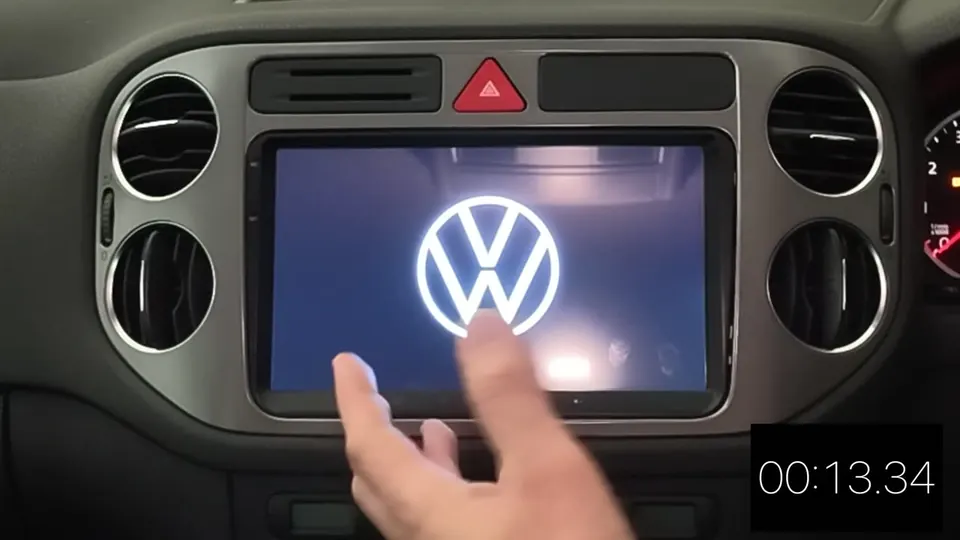
Still streaming Bluetooth through the factory stereo? I swapped the factory RCD 310 in my 2009 Tiguan for the Eonon VWX7A, a 9" Android head unit made for the 1st-gen Tiguan. It gives you wireless Apple CarPlay, Android Auto and built-in navigation. Every connector is keyed and it uses the factory quad-lock plug, so it's a beginner-friendly job with a big payoff.
- Vehicle
- VW Tiguan 5N (2007-2015)
- Difficulty
- Beginner to intermediate
- Steps
- 11
- DIY-ability score
- 45/50
Parts
- Eonon VWX7A head unit package for the 1st-gen Tiguan (the box label reads VWX7A-B). It includes the wiring harness, CANBUS decoder, GPS antenna, external microphone, USB/CarPlay leads and a free reverse camera. Get it here and use code ANGSAVE for 5% off.
- Optional, to tidy the harness and stop rattles: braided cable sleeve, 10mm cable ties and packaging foam
- Optional, for a custom boot logo: a USB thumb drive formatted FAT32 (I used a SanDisk)
Tools needed for the job
| Item | Amazon | AliExpress |
|---|---|---|
| 46pc Mechanic Toolset | Click to buy | Click to buy |
| 19pc Plastic Pry Tool | Click to buy | Click to buy |
| 10mm Cable ties | Click to buy | N/A |
| Precision scissors | Click to buy | N/A |
| Braided cable sleeve | Click to buy | N/A |
| Sandisk Thumb Drive | Click to buy | Click to buy |
Note: The T20 Torx bit you need is part of the 46pc Mechanic Toolset. Optionally, grab a push-pin (the cork-board type) for de-pinning unused RCA jacks.
Some links on this page are affiliate links, so I may earn a small commission if you buy through them, at no extra cost to you. Thanks for supporting the channel!
Steps
-
Get your tools ready
You only need a T20 Torx driver and a plastic pry tool to get the factory stereo out.
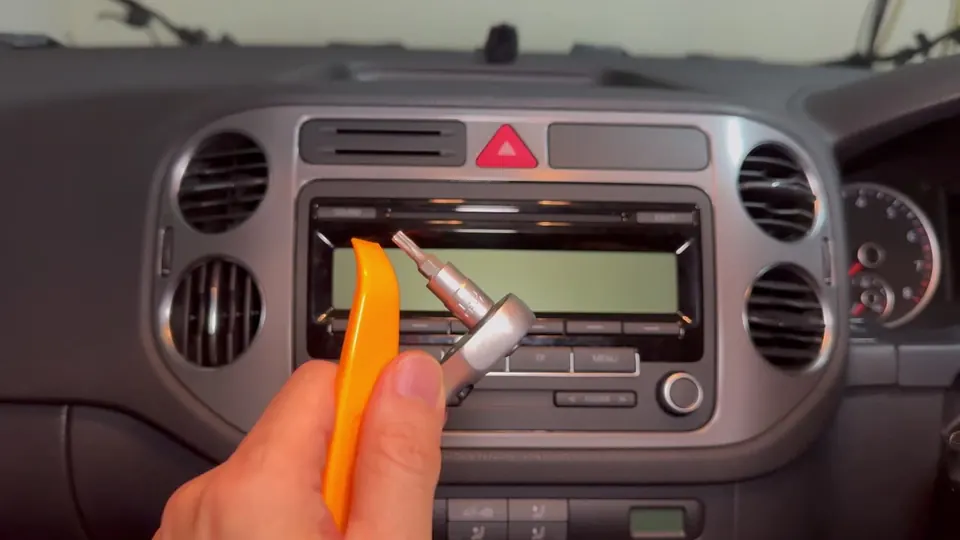
T20 Torx and plastic pry tool -
Pop off the two plastic panels
Use the pry tool to release the two small panels next to the stereo. Push the tool in and the panel pops off. Each one has four clips.
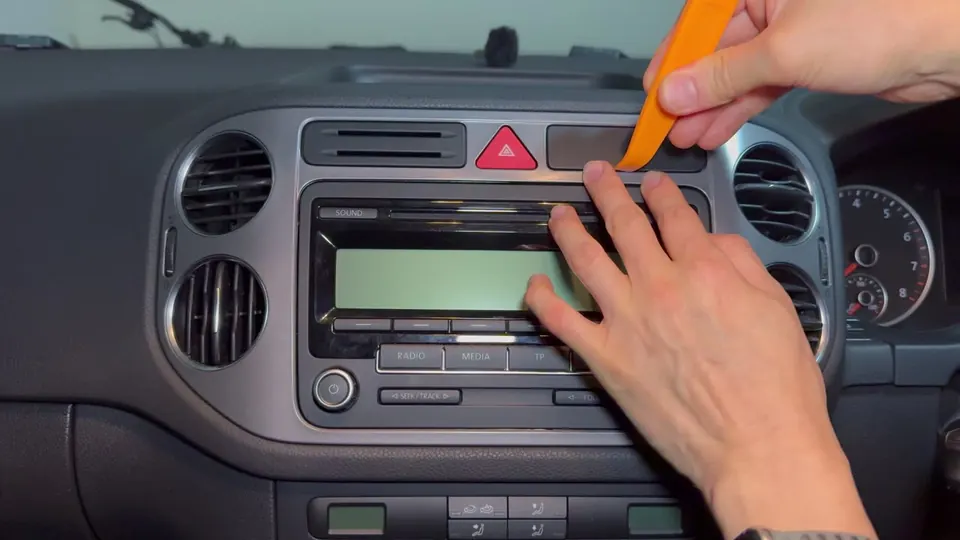
Prying off the side panel -
Remove the two Torx screws
With the panels off you can reach two T20 Torx screws. Remove both and keep them somewhere safe.
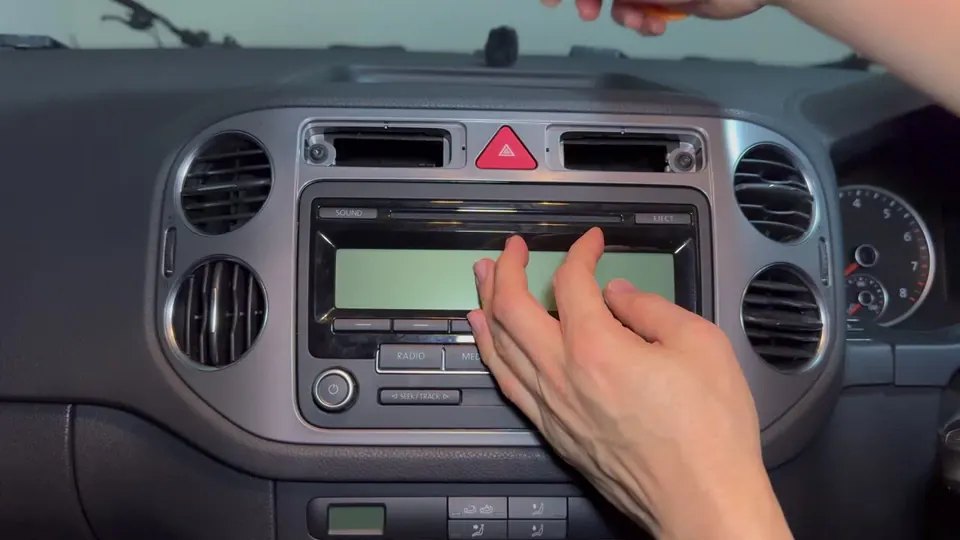
Removing the T20 screws behind the panels -
Pop out the plastic surround
Carefully pry around the outside of the frame. You can start anywhere. The hazard-light switch is still connected, so pull the surround out gently and swivel it up. Then unplug the hazard switch: it has two clips, one on top and one at the bottom. Squeeze both and pull the switch out, then set the surround aside.
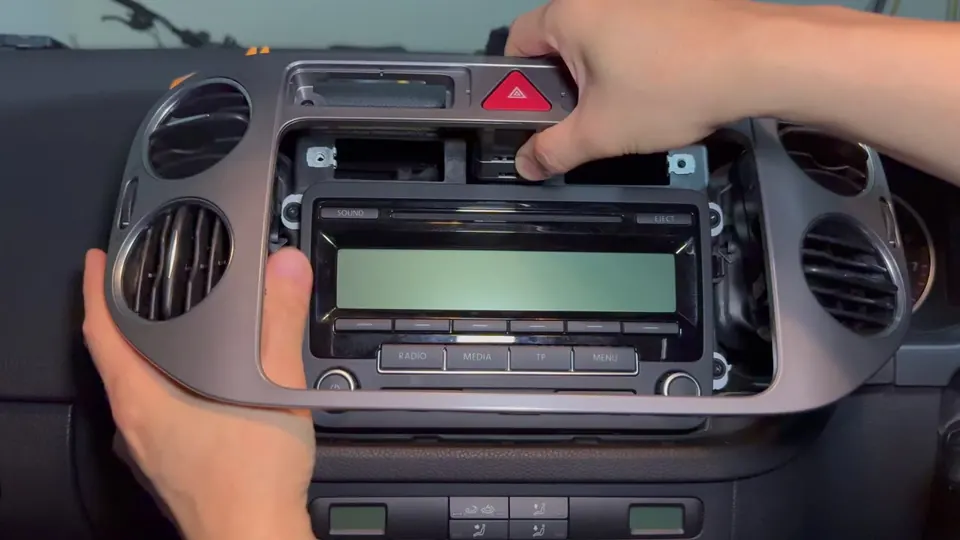
Removing the surround 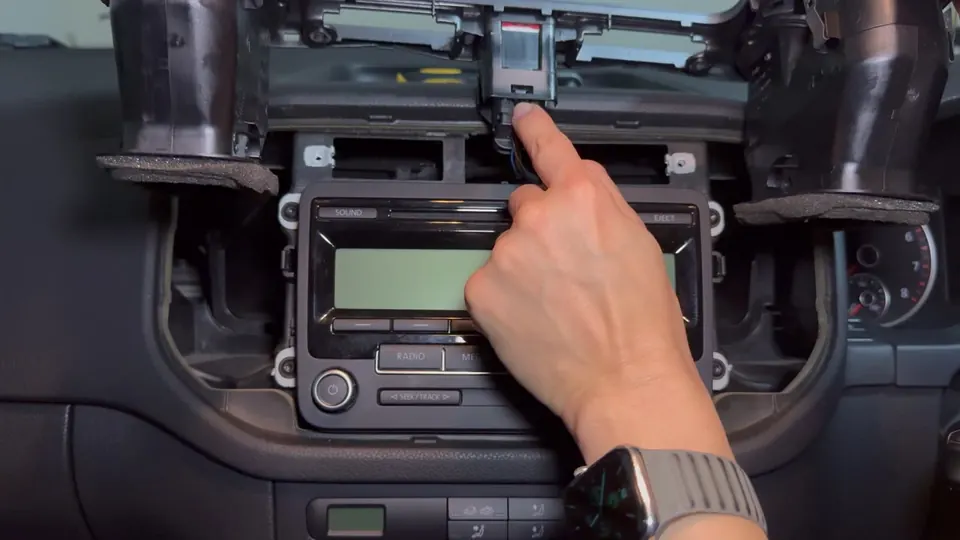
Pressing the clip to release the hazard switch -
Remove the four Torx screws
Remove the four T20 Torx screws that hold the factory head unit in.
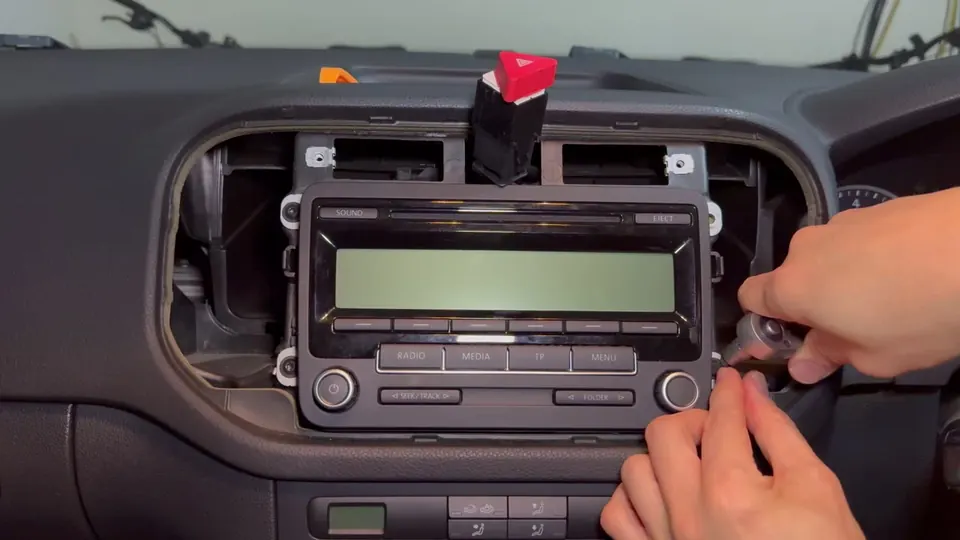
Removing the four head unit screws -
Pull out the factory unit and unplug it
Slide the factory unit out.
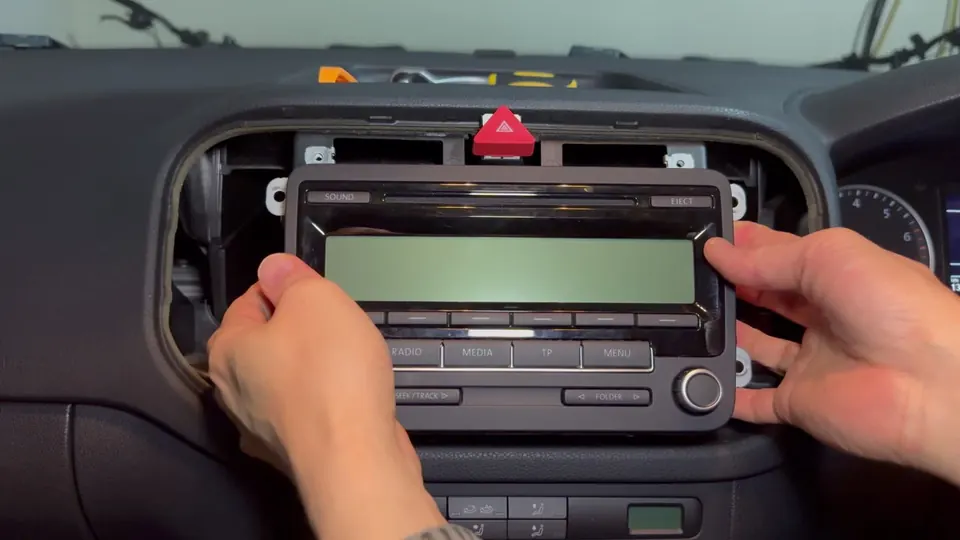
Pulling out the factory unit 6a. Disconnect the Fakra connector
Flip the unit over and you'll see a small white connector on the back. This is the Fakra radio antenna connector. Pull the tab out, then pull the connector off.
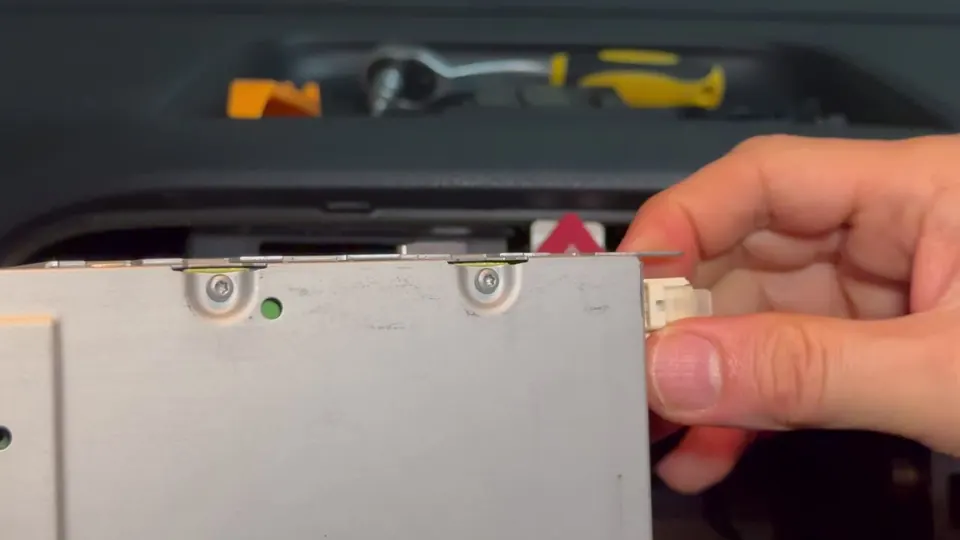
Unplugging the white Fakra connector from the back of the factory unit 6b. Release the quad-lock
Flip the unit down so you can see the quad-lock connector. Push the small lock clip down to disengage it, then swivel the lever all the way up to release the plug.
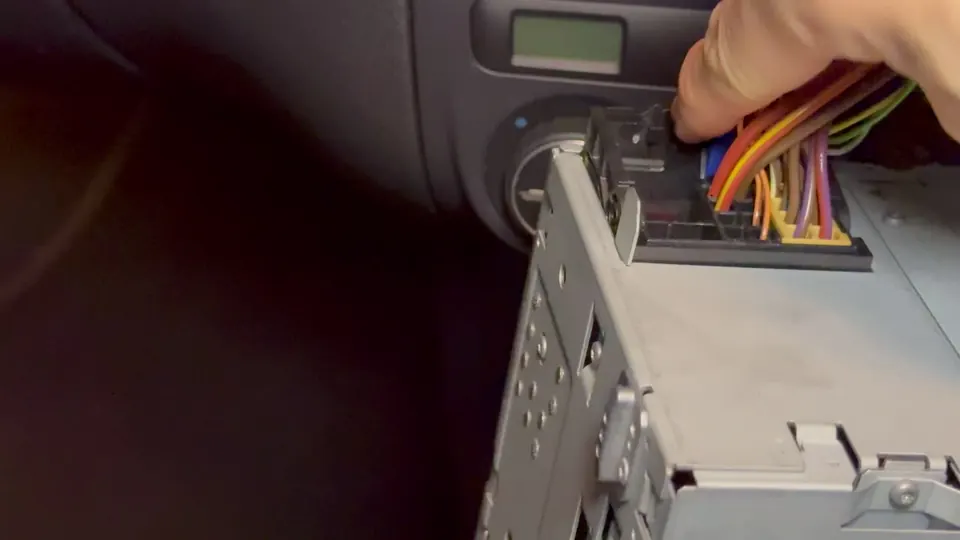
Releasing the quad-lock connector -
Connect the Eonon harness
Plug the accessory connectors into the back of the Eonon unit one at a time. They're keyed, so you can't mix them up. That covers the main harness, reverse camera, steering-wheel control, CarPlay USB and second USB. Make sure each one clicks in and sits flush. Then connect the main power plug, the radio aerial and the Fakra radio connector.
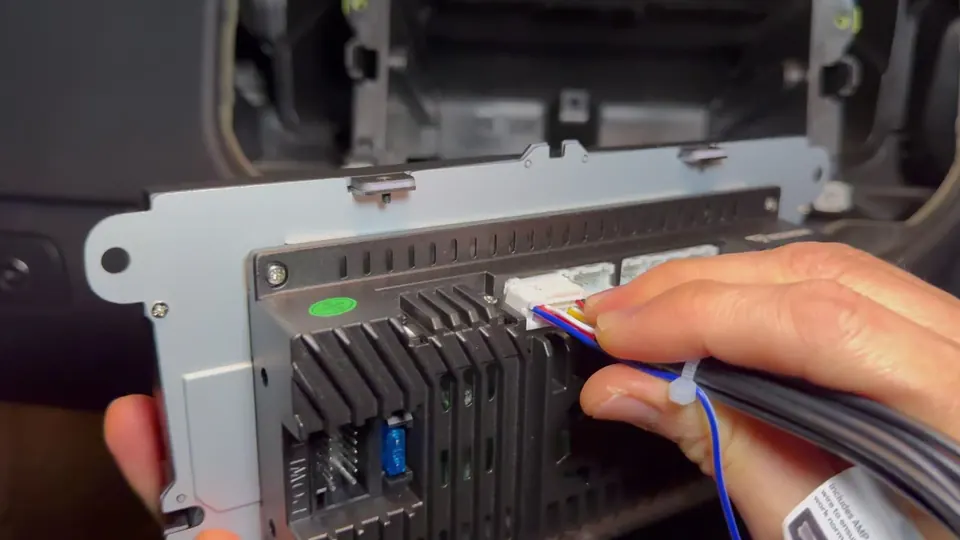
Plugging in the keyed connectors -
Connect the factory quad-lock and test
Connect the car's quad-lock plug to the Eonon harness. Line up the swivel lever, close it and check that the connection is fully flush. Before you close up the dash, test the unit to check that it powers on.
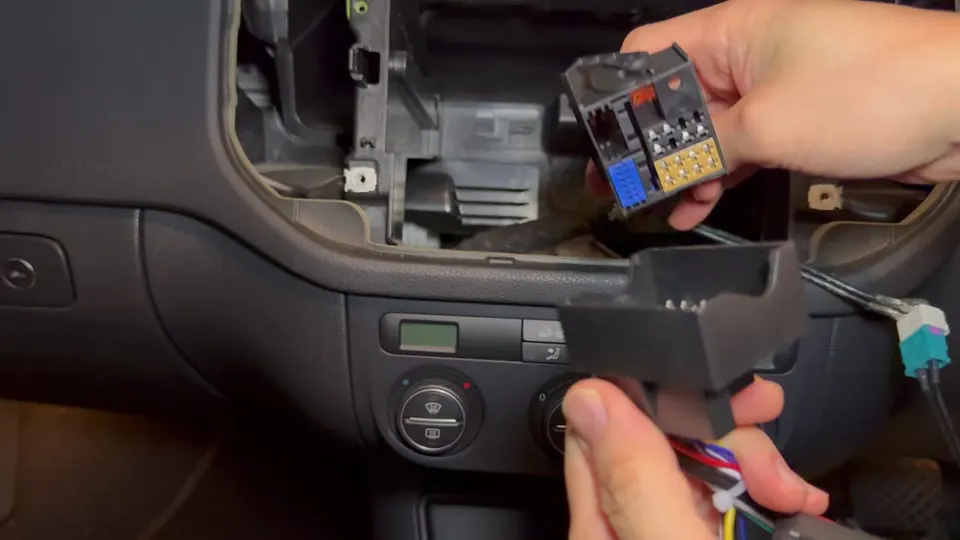
Connecting the quad-lock 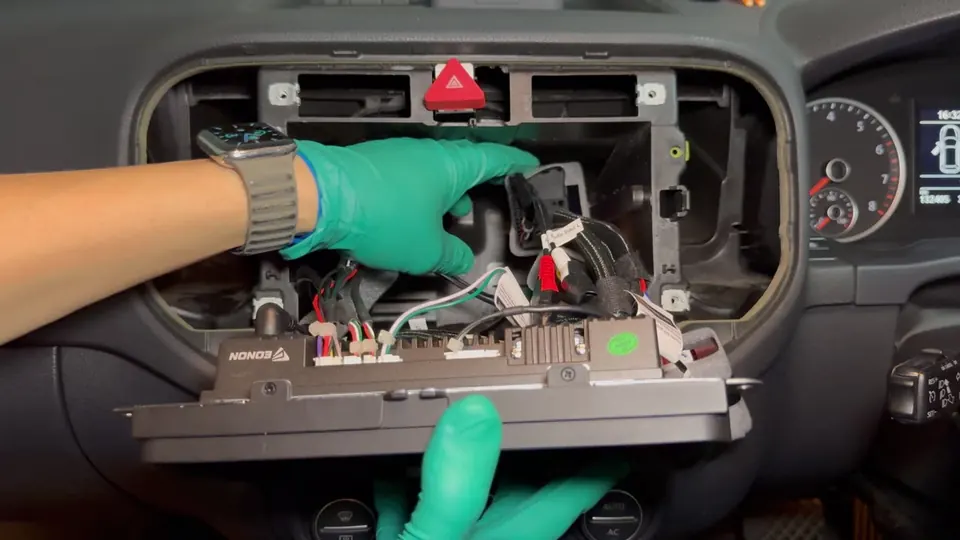
Pushing the wiring harness into the dashboard cavity -
De-pin unused RCA jacks (Optional)
Optional, but worth it if your car has no amp or aux inputs (my Tiguan doesn't): use a push-pin (the cork-board type) to de-pin the unused RCA jacks from the harness so they don't rattle around in the dash. Wrap the loose wires in braided cable sleeve and add foam around hard plastic parts such as the quad-lock. Then route the GPS antenna (I mounted mine at the corner of the dash and fished the cable down to the cavity) and the USB leads (fed through to the glovebox). Tuck everything neatly into the dashboard cavity.
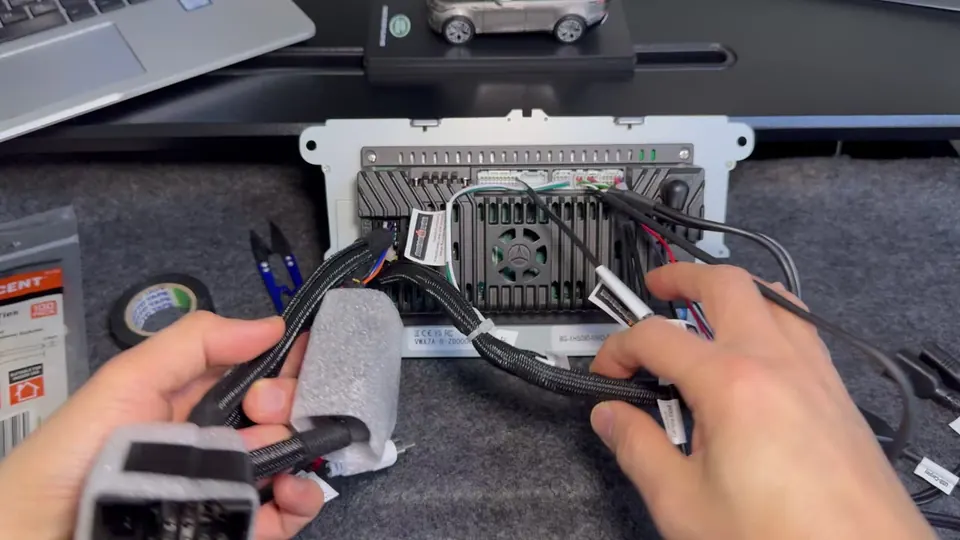
Tidied harness -
Reassemble
Reverse the steps. Slide the Eonon unit in and refit the four T20 screws. Plug the hazard switch back in, clip the surround back in, refit the two T20 screws, then press the two side panels back into place.
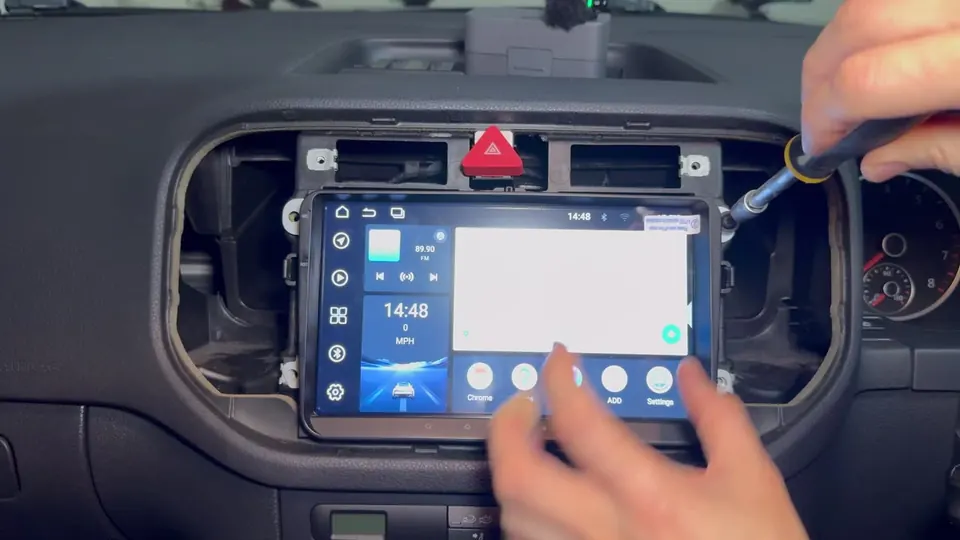
Clipping the trim back in -
Set up the unit
Peel off the screen film. Then set the CAN type to match the supplied CANBUS decoder: Settings → Factory settings → PIN 1234 → CAN type set. For the full menu reference, including the VW boot logo and the right-hand-drive door-indicator fix, see my interactive CANBUS Settings guide.
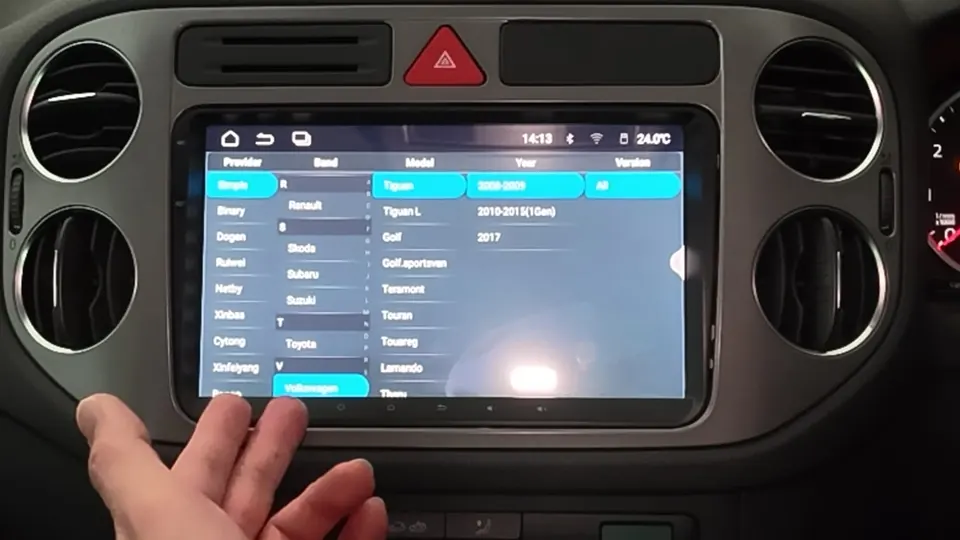
CAN type setting screen (Simple decoder, Tiguan selected)
Coming soon: Part 2, reverse camera
The kit comes with a free reverse camera. Its harness has a pre-wired power plug, so you only need to run one red wire to the reverse trigger. The reverse camera install is coming in Part 2. Stay tuned.